


Have you ever plugged a USB drive or game controller into your Android phone, only to realize nothing happens? It’s super frustrating especially when you know your device should support it. I remember thinking, “Why isn’t this working? Do I need to download something? Change a setting?” That’s when I stumbled upon the real fix: you need to Enable OTG first.
In this guide, I’ll show you exactly how to Enable OTG on any Android phone, step by step. Whether you want to connect a USB drive, mouse, keyboard, or even a gamepad, you’ll find all the tips and options right here. It’s simple, quick, and you won’t need any technical skills to follow along. Let’s unlock the full power of your phone together.
What is USB OTG?
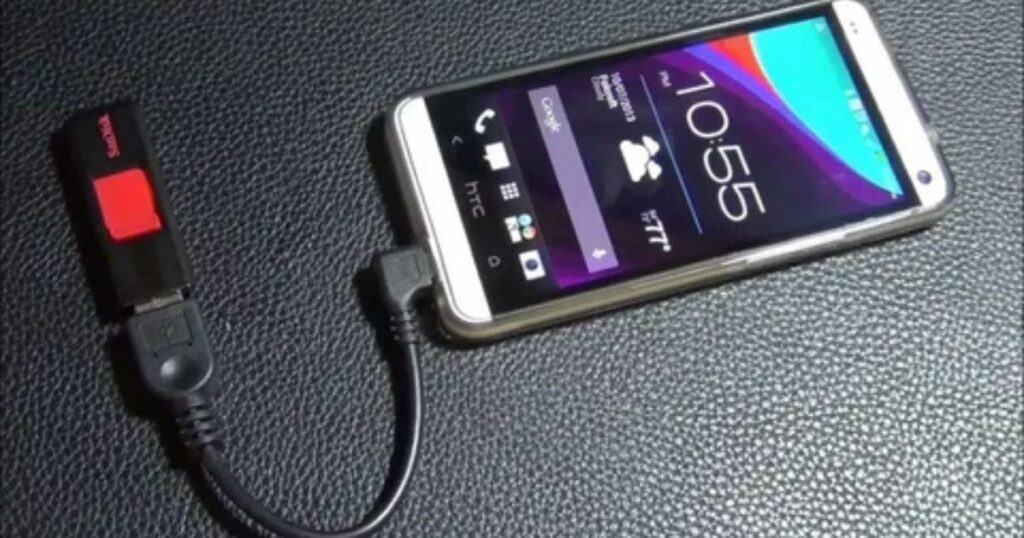
USB OTG (short for On-The-Go) is a feature that lets your Android phone work like a computer when connecting USB devices. Normally, your phone acts as a device when you plug it into a computer. But with OTG, your phone can become the host just like a computer. This means you can plug in things like USB drives, keyboards, or game controllers directly into your phone and use them without needing a laptop. OTG makes it easy to use your phone with USB accessories while you’re on the move.
Is OTG Still Relevant with USB-C Adoption?
Even though USB-C is now common on most new phones, OTG is still very useful. That’s because USB-C supports OTG too, which means you can still connect things like USB drives or keyboards to your phone.
Many devices still use older USB-A connectors, including hard drives and mice. OTG makes it possible to use those accessories with your phone, even if it has a USB-C port. So yes, OTG is definitely still relevant today
Top five uses of USB OTG
OTG can be used in many ways. You can plug in a flash drive to copy photos, or even connect a LAN cable through a dongle to get superfast internet on your smartphone. It’s one of those features that quietly makes your phone much more powerful.
One of the most common uses is transferring files. Just connect a USB drive, external hard disk, or even an SSD to your phone and move data instantly. With modern smartphones and fast storage, large files like movies or games copy over in seconds. Some storage devices might need extra power, so keep that in mind.
If you like typing on a real keyboard, OTG makes that possible too. Just plug in your keyboard and get to work whether you’re replying to emails, writing documents, or just want a more comfortable setup. Add a mouse and suddenly, your phone feels like a mini desktop. It’s even better if you’re using a foldable phone or a tablet.
Gamers love this too. You can connect a wired game controller and enjoy smooth gameplay without your fingers blocking the screen. It’s a great way to turn your phone into a pocket gaming console.
And for music lovers, there’s more. Plug in a USB DAC using OTG and get crystal-clear, lossless sound that regular headphone jacks can’t match. It’s the kind of upgrade that makes a big difference if you care about audio quality.
Some phones even let you charge another phone through OTG. So if someone’s battery dies and you have extra charge, you can help them out no power bank needed.
Best USB OTG cable to buy
The right OTG cable depends on the type of port your Android phone or tablet has. Many new accessories come with USB-C connectors that plug directly into your device. However, older accessories like keyboards or mice often use USB-A, which is where an OTG cable or adapter is needed. These cables are usually inexpensive and easy to find. Some smartphones, like Google Pixel models, even come with an OTG adapter included in the box.
How to Check USB OTG Support for your Android Phone
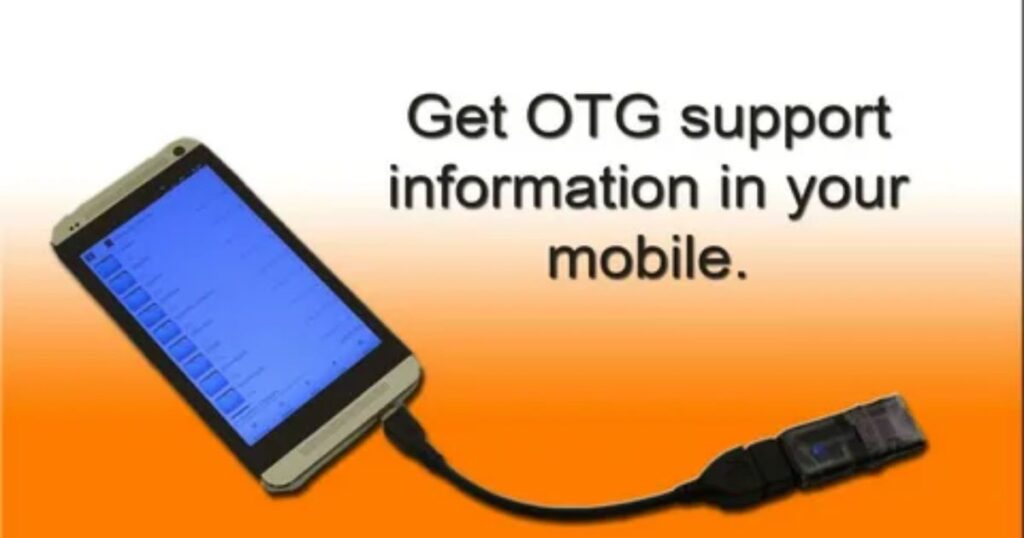
If you’re not sure whether your Android phone can enable OTG, there are a few easy ways to find out. First, check your phone’s official specs if OTG support is listed, then you’re good to go. Some phones also have a USB-OTG label near the port, which is another sign it’s compatible.
Another simple method is to plug in an OTG cable and see if your phone responds. If it connects successfully to a USB drive or other accessory, then your phone supports OTG. You can also search your phone’s model online or contact the manufacturer to confirm. Either way, these steps help you know for sure before trying to enable OTG features.
How to Enable OTG Android The Short Answer
To enable OTG on your Android phone, the steps may vary slightly depending on your device brand. For example, OPPO and Vivo phones have an OTG toggle in the settings menu just turn it on, and you’re ready to connect devices like USB drives or cameras. This process is pretty similar for other brands like Sony, too.
On Android you may need to install drivers first, especially for brands like Samsung. After that, plug in your OTG cable, connect your USB device, and follow any prompts that appear. If your phone doesn’t offer an option to enable OTG, it might not support it so checking your device manual or contacting the manufacturer can help.
Enable OTG Android Turn on OTG mode to Connect the Pendrive
Most modern Android phones detect OTG devices automatically when you plug them in. But on some phones, you need to enable OTG manually from the settings. If your phone supports it, it will recognize the OTG cable as soon as it’s connected.
If nothing happens when you try to use an OTG device like a pen drive, your phone may not support OTG. It’s always a good idea to check compatibility first before following any steps to turn on the feature
Step 1: Search for “OTG” in Settings
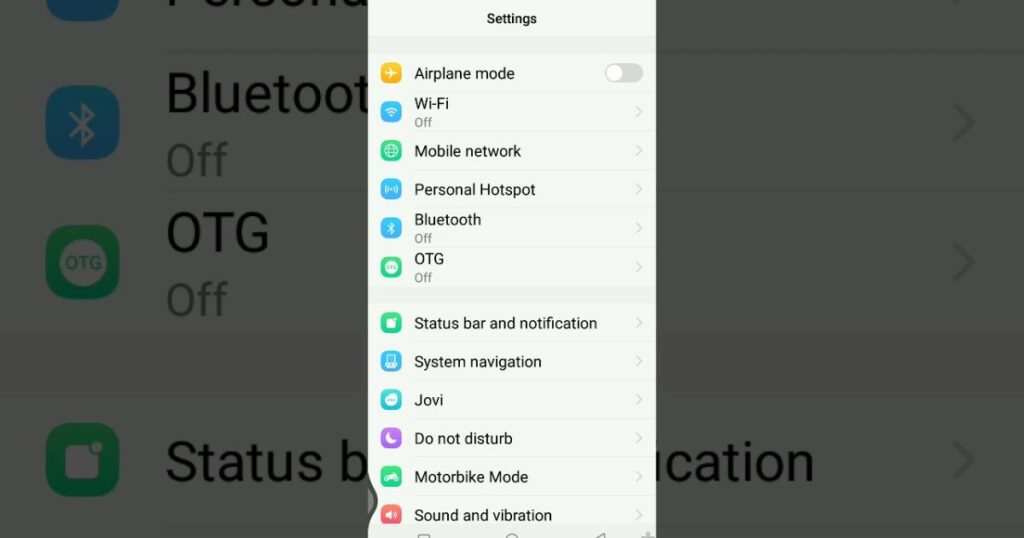
The first thing to do is open your phone’s Settings and search for the term “OTG” or “On-The-Go”. If your phone supports this feature, it will show up in the search results. Just tap on the option to Enable OTG, and your phone will be ready to connect devices like USB drives or pen drives.
Step 2: Tap on the OTG Connections
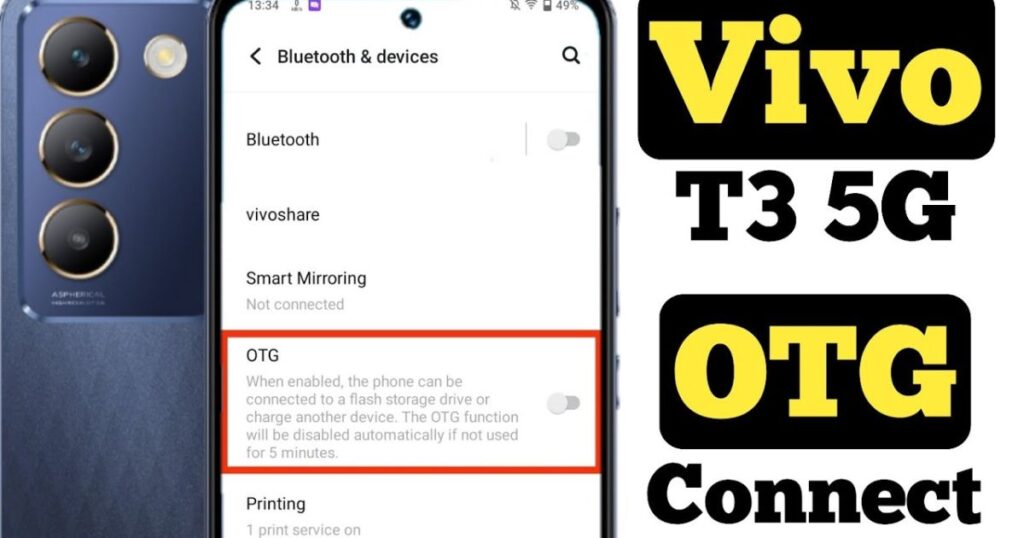
After you search for OTG in your phone’s settings, the next step is to tap on the OTG option from the results. This will take you to the right place where you can turn on the OTG feature. Once enabled, your phone will be ready to connect with USB drives, pen drives, or other OTG-supported devices.
Step 3: Enable the OTG Connection
After finding the OTG option in your settings, turn it on by tapping the switch. Once OTG is enabled, your phone will be able to read and use devices like USB drives or pen drives. This step is needed to make sure your Android can connect with the OTG device properly.
Step 4: Ready to use
Once you’ve followed all the steps, your OTG feature is now turned on and ready to use. Just plug in your USB device or pen drive, and you can start moving or copying files easily. Everything is set, and your Android phone is now fully ready to use OTG.
Samsung OTG Setting
On Samsung devices, there’s usually no manual OTG setting to turn on. If your phone supports OTG, it will automatically detect and enable the feature when you connect an OTG cable or device. You don’t need to change any settings just plug it in, and it works right away.
Method 2: From the notification panel
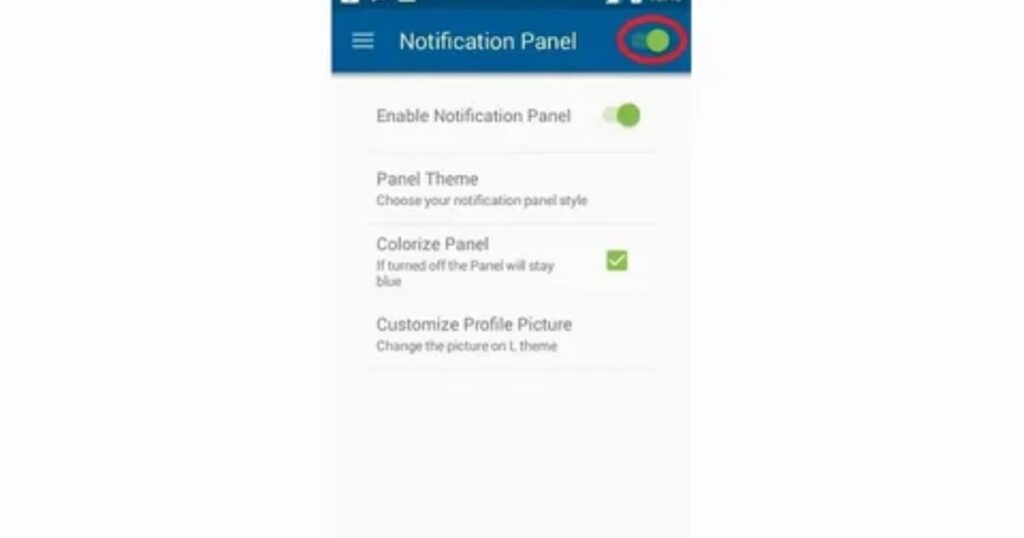
To turn on OTG mode from the notification panel, swipe down from the top of your screen. Look for the OTG icon in the quick settings. If you don’t see it right away, swipe left or right to find it, then tap to enable it.
Make sure your phone supports OTG, use a proper USB OTG adapter, and check that your USB device is formatted in FAT32. If you still face issues, restart your phone or turn on USB debugging from Developer Options.
To enable OTG on any Android phone, follow these steps
Check OTG Support . Make sure your phone supports OTG by checking its specs or using an OTG checker app.
Use the Right Adapter . Connect a USB OTG adapter to your Android phone.
Connect External Device . Plug in your USB device (e.g., pen drive, keyboard, mouse) into the adapter.
Use USB-C to USB-A Adapter . If your phone has a USB-C port, use a compatible USB-C to USB-A OTG adapter.
Enable Developer Options . Go to Settings > About Phone, and tap Build Number seven times to unlock Developer Mode.
Enable USB Debugging . In Developer Options, turn on USB Debugging to allow OTG access.
Start Using OTG . Once everything is connected and enabled, your phone will recognize the device, and you can start using OTG.
Here are some tips for using OTG on your Android phone
- Make sure your phone supports OTG before using it.
- Always use a good-quality USB OTG adapter for better connection.
- If you’re using a USB drive, it should be formatted in FAT32 to work properly.
- Not all devices (like some external hard drives) will work with OTG.
- If OTG doesn’t work, restart your phone and try again.
- After connecting, give your phone a moment to detect the USB device properly.
- Safely remove the OTG device when you’re done to avoid data loss or damage.
Here are some of the devices that you can connect to your Android phone using OTG
- USB drives
- Keyboards
- Mice
- Game controllers
- External hard drives
- Printers
- Scanners
- Cameras
- Speakers
- Headphones
- MIDI devices
- Other Android devices
Here are 10 benefits of enabling OTG mode on your Android device
- More Storage: You can expand your phone’s storage by connecting USB drives.
- Quick File Transfer: Easily move files between your phone and other devices.
- Backup & Restore: Safely backup your data or restore it when needed.
- Media Access: Play music, videos, or view photos directly from external devices.
- Use Keyboard & Mouse: Boost productivity by connecting a physical keyboard or mouse.
- Direct Printing: Print files straight from your phone to a printer.
- Better Gaming: Connect game controllers for a smoother gaming experience.
- Connect USB Devices: Use devices like cameras, MIDI instruments, or scanners.
- Charge Other Devices: Turn your phone into a power bank to charge other gadgets.
- Improved Audio: Plug in USB audio devices for better sound quality.
Step1. Check if Your Android Phone Supports OTG
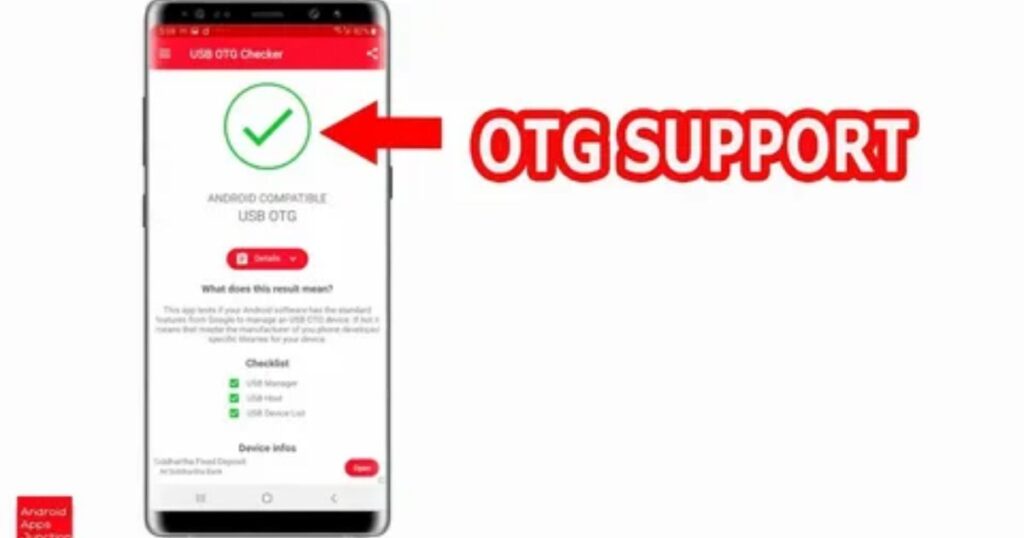
OTG (On-The-Go) lets your Android phone connect to USB devices like keyboards, mice, flash drives, and more. But not all Android phones support this feature, so it’s important to check before trying to use it.
You can search online for your phone’s specifications or ask the manufacturer to confirm OTG support. If your phone doesn’t support OTG, it won’t recognize connected devices. But if it does, you’re ready to move on and start using USB accessories.
Step 2. Confirm the OTG Connector is Working
Check the OTG Cable or Drive If your phone doesn’t read the OTG device, the issue might be with the cable or USB drive, not the phone itself.
Old vs New Tech Older OTG devices might not work well with newer phones, and newer OTG accessories may not be supported by older phones.
Inspect for Damage A broken or faulty OTG cable or USB port on your phone can prevent a proper connection.
Use Quality Accessories Choose OTG cables and USB drives from trusted brands to avoid compatibility or power issues.
Step 3. Check Your Phone’s Settings
Most Android phones have a built-in OTG option in the settings. You can turn it ON or OFF from there.
Some phones show a pop-up message like “Enable OTG” when you plug in a USB device.
If you don’t get a pop-up, go to Settings and manually enable OTG.
You can turn on the OTG setting whether the USB device is connected or not.
Before connecting any external device, make sure the OTG feature is turned ON.
If you see the “Enable OTG” prompt, just tap on “Yes” or “OK” to activate it.
Step 4. Try a Different File Manager App
To access files from an OTG device, you need a File Manager app installed on your Android phone.
If your phone doesn’t read the USB drive, it could be due to file format issues or limitations in the default file manager.
A good solution is to download a third-party file manager app that supports OTG and advanced file formats.
You can find these apps on the Google Play Store. Some popular options include:
- ES File Explorer
- Files by Google
- FX File Explorer
- File Manager by InShot
- USB OTG File Manager for Nexus
- MiXplorer Silver
These apps help in reading, writing, and managing files from connected OTG devices more effectively than the default one
Step 5. Contact a Professional to Root Your Device
If OTG still doesn’t work, rooting your Android phone might be the only solution.
Some phones don’t support OTG by default and need to be rooted to allow external USB connections.
Rooting your phone yourself is risky you could damage the system or lose important data.
It’s best to go to a professional technician or repair center to safely handle the rooting process.
An expert will check your phone, guide you, and root it properly so it can support OTG connections.
Why Turn OTG on for the Android Version?
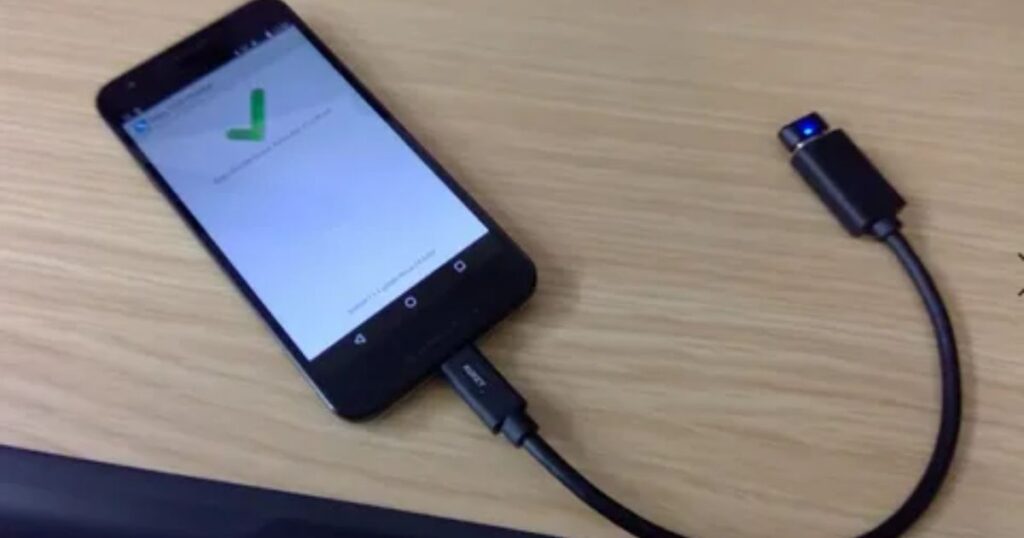
Turning on OTG on Android (like Android 13) is helpful because it lets you transfer files to a USB flash drive and connect devices like a keyboard or mouse. Once OTG is enabled, it’s easier to control and use external hardware directly from your smartphone.
Enabling OTG on Android 13
Check if your phone supports OTG Not all Android 13 phones support OTG. Look in the user manual or search your model online to confirm.
Install required drivers (if needed) Some phones, like Samsung, may need software like Samsung Kies. Install it before using OTG.
Plug in the OTG cable Connect the OTG cable to your phone’s charging port.
Connect your USB device Attach a USB drive, keyboard, mouse, or any supported device to the OTG cable.
Wait for a pop-up or notification If your phone supports OTG, it will show options like “Open folder” or “Use this device.” Tap the option you want.
If it doesn’t work, check settings or contact support If nothing appears, your phone might need settings adjustment or it may not support OTG. You can also ask your phone’s manufacturer for help.
How Does OTG Help?
There are five primary ways in which OTG can help you.
Connect More Devices With OTG, you can connect USB devices like flash drives, keyboards, mice, and game controllers directly to your Android phone.
Quick File Transfers Easily move photos, videos, and documents between your phone and a USB drive no need for a computer.
Use Keyboard and Mouse OTG lets you connect an external keyboard or mouse to your phone for easier typing and navigation.
Better Gaming Experience You can plug in a USB game controller to play mobile games more comfortably and with better control.
Charge Other Gadgets Your phone can also work as a power bank to charge other USB devices like another phone or small accessory.
Someone ask on Reddit r/Pixel Experience group: How to enable OTG?
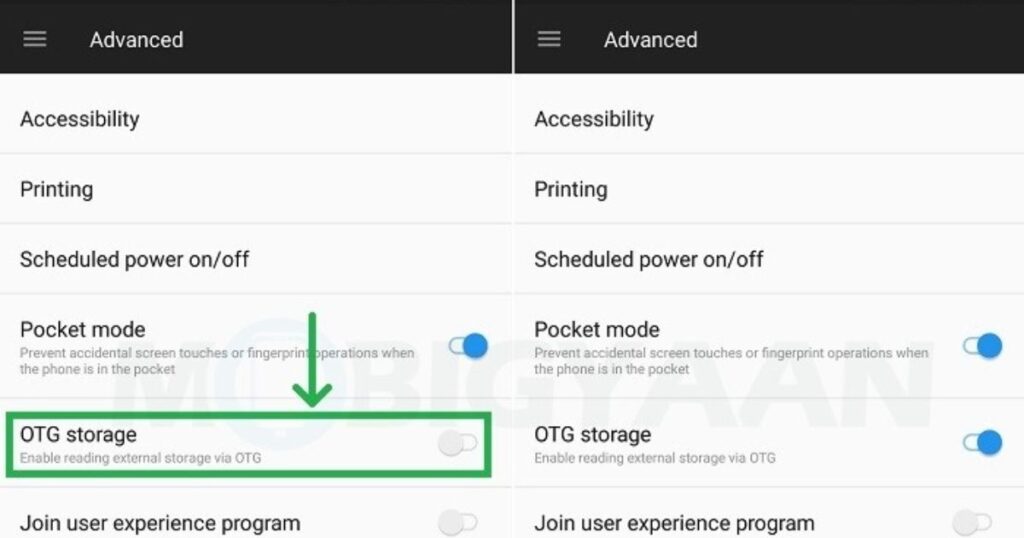
To enable OTG, you typically need a USB OTG cable or adapter. Just connect your USB device to your phone using the cable, and most Android phones will automatically detect the device and show a notification that it’s ready to use.
If your phone doesn’t respond, go to Settings > Developer Options and make sure the OTG feature is turned on. Some models, like Google Pixel, may also require checking USB accessory settings to complete the setup.
In case it still doesn’t work, try restarting your phone or double-checking if your phone and USB device are OTG-compatible. Older phones or custom ROMs might not support OTG, so it’s worth checking your phone’s manual or support page.
Someone ask on Quora: How to enable OTG without rooting my device?
If you want to enable OTG without rooting your Android device, the process is usually very simple. First, make sure your phone supports OTG. Most modern Android phones do, but it’s still a good idea to check your user manual or look it up online. Once confirmed, just connect your USB device like a flash drive or keyboard using an OTG cable or adapter.
In most cases, your phone will automatically detect the connected device, and a notification will appear letting you access files or use the accessory. If nothing shows up, you may need to go into your phone’s settings and enable OTG manually. This option can sometimes be found under USB settings or Developer Options, depending on your device. There’s no need to root your phone to use OTG.
Is OTG mode helpful?
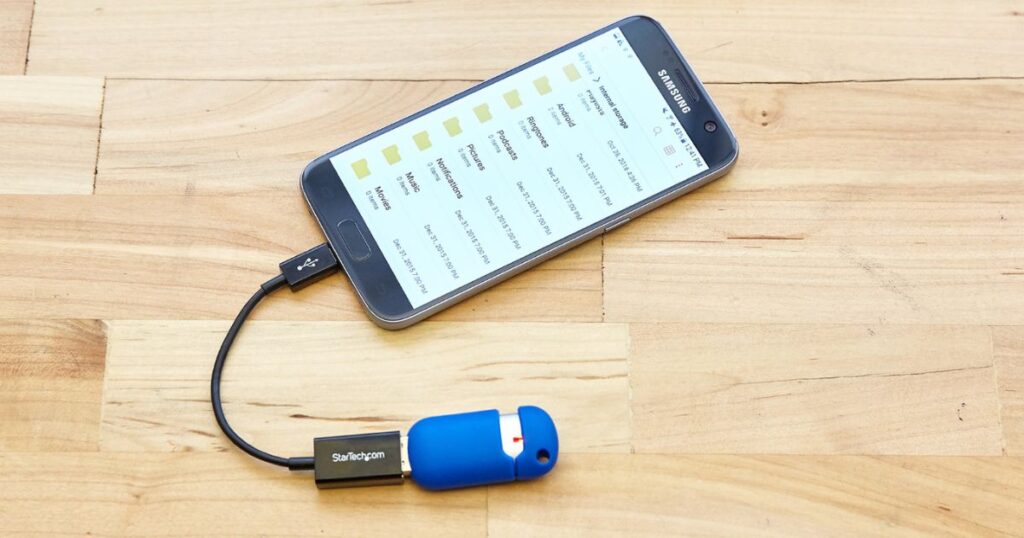
Yes, OTG mode is helpful because it allows you to connect USB devices like pen drives directly to your smartphone. Once OTG is enabled through your phone’s settings, you can easily transfer files, access data, or use external peripherals like a keyboard or mouse.
The process is simple: just search for “OTG” in your settings, tap on “OTG connection,” and toggle it on. After that, you’re ready to plug in your USB device and use it without needing a computer.
Read More: Technology Falcon
FAQ’s
What does enable OTG mean?
Enable OTG means turning on a feature that lets your Android phone connect to and control USB devices like flash drives or keyboards.
Where is OTG in Samsung settings?
On Samsung phones, you don’t need to turn on OTG it works automatically when you plug in a USB device. Just connect and start using it.
What are the disadvantages of OTG?
One disadvantage of OTG is that it can drain your phone’s battery quickly and may not support all USB devices.
What is the benefit of Enable OTG on Android?
Enabling OTG on Android lets you connect USB devices like flash drives, keyboards, and game controllers. This gives you more storage, faster file sharing, and better control for gaming or work.
How do I Enable OTG without rooting my phone?
To enable OTG without rooting your phone, just connect a USB OTG cable and compatible device most Android phones detect it automatically. If needed, go to Settings and turn on OTG or check Developer Options.
Conclusion
Enabling OTG on your Android phone unlocks powerful features like connecting USB drives, keyboards, and more no root required! With just a simple OTG adapter, you can boost productivity, transfer files faster, and enjoy a PC like experience on your mobile. So, enable OTG today and turn your phone into a multitasking machine!

I’m Rana Waseem, an SEO blogger with a passion for creating content that ranks and drives results. With a deep understanding of search engine optimization and keyword strategy, I help businesses and readers discover valuable information through well-researched, engaging blog posts. My goal is to simplify SEO for everyone while staying ahead of the latest trends in digital marketing